Adding Cross-Reference Measurements
The cross-reference measurement function lets you add measurements of an object's cross-referenced labels to another table.
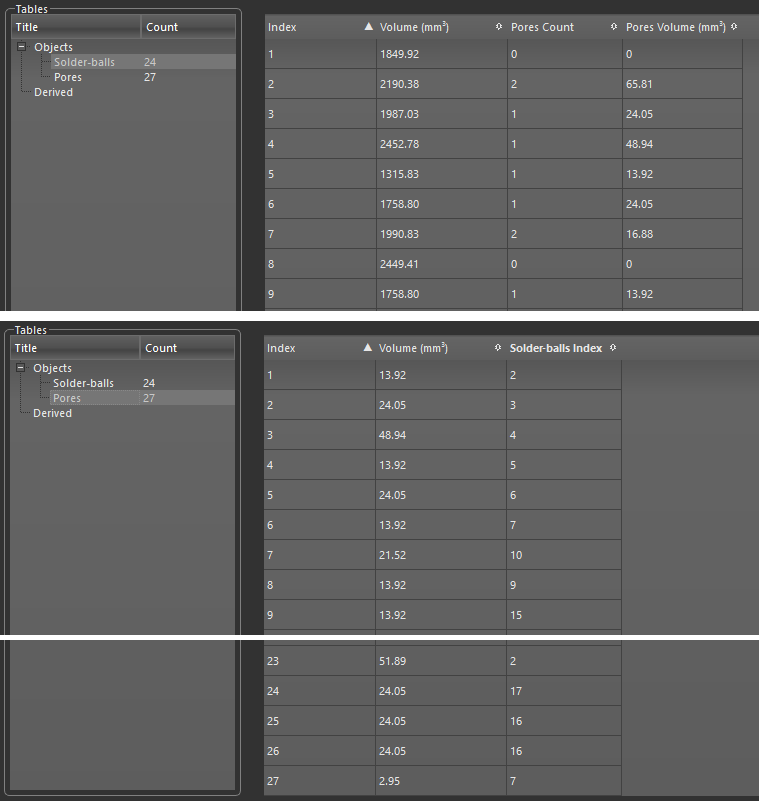
As shown in the following example, the measurements of 'Pores Count' and 'Pores Volume' were added to a Solder-balls table from the pores labels that were cross-referenced to the solder-balls. The Pores table on the bottom shows how the labeled pores are cross-referenced to the labeled solder balls. Note that two pores, '1' and '23' are cross-referenced to solder ball '2'. Results of the cross-referenced measurements on the Solder-balls table are '2' for Pores Count and '65.81 mm3' for total Pores Volume. Additional cross-reference measurements are also available, as described in this topic.
You should note that a value of 0 indicates that the cross-referenced label does not intersect with any labels of the other object. In addition, in cases in which a cross-referenced label intersects with multiple labels, the first intersecting label will be reported.
Solder-balls and Pores tables
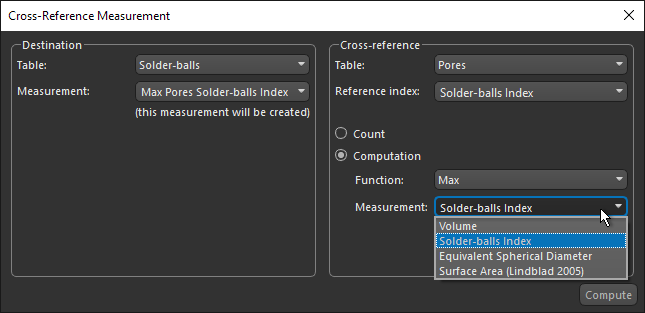
The following cross-reference functions are available in Analyze and Classify Measurements. These can be computed from any of the measurements available in the cross-referenced table and added to the destination table, as shown below.
| Item | Description |
|---|---|
| Count | Is the number of labels that intersect with each label in the destination table. |
| Computation | |
| Function |
The following functions are available for computing cross-referenced measurements. Computations are done for each measurement that is cross-referenced.
Sum… For each label, is the sum of the selected measurement that is cross-referenced to the label. Mean… For each label, is the mean value of the selected measurement that is cross-referenced to the label. Min… For each label, is the minimum value of the selected measurement that is cross-referenced to the label. Max… For each label, is the maximum value of the selected measurement that is cross-referenced to the label. Fraction… For each label, is the sum of the selected measurement of the cross-referenced label(s) divided by the sum of the cross-referenced measurement. You should note that the sum of fraction measurements is 1.0. In the example of the solder balls and pores, the fraction for each ball is the sum of the volume of the pores that are cross-referenced to each ball divided by the total pore volume. |
| Measurement | Lets you select the measurement that will be computed. |
-
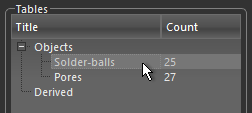
Select the table that you want to add the cross-reference measurement to, recommended.
Note Refer to the topic Importing Scalar Data for information about importing scalar data and Adding New Measurements for information about computing new measurements.
-
Click the Cross-Reference Measurement
 button.
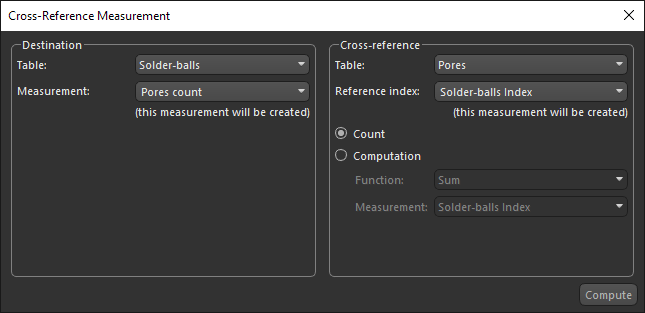
The Cross-Reference Measurement dialog appears.
-
Change the selected destination table in the Table drop-down menu in the Destination box, if it is not the one that you want to add the cross-reference measurement to.
-
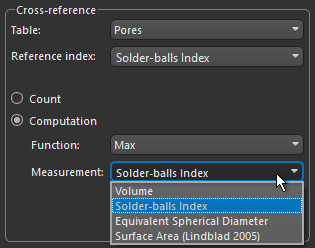
Choose the table that will provide the cross-referenced measurements in the Table drop-down menu in the Cross-reference box.
-
Choose a reference index in the Reference index drop-down menu, if required.
Note By default, a reference index will be created automatically for multi-ROIs that cross-references labels in the cross-reference table to the labels in the destination table when you first compute counts or another function. You can also select another reference index for multi-ROIs, such as cross-indexing done in the Compute Measurements dialog (see Computing Measurements for Multi-ROIs). For meshes, graphs, and vector fields, the reference index must be provided from an external source and then imported.
-
Select one of the following — Counts or Computation.
-
If you selected Counts, continue to the next step.
-
If you selected Computation, choose the required function in the Function drop-down menu and then the required measurement in the Measurement drop-down menu.
-
-
Do one of the following in the Destination box:
-
Edit the default Measurement title, if required.
-
Select a measurement in the Measurement drop-down menu. In this case, the selected measurement will be overwritten.
-
-
Click Compute
The selected cross-reference measurement is added to the destination table.
